Employee time tracking dashboard tour

This is what you see when you log in to Watchie. Real screens, sample company.

1

Live: who’s working right now

The first screen managers see. Everyone on the team with their status — working, on a break, clocked out or not started — what they’re working on, activity in the last 15 minutes, hours in the last 24, and their latest screenshot.

app.watchie.co
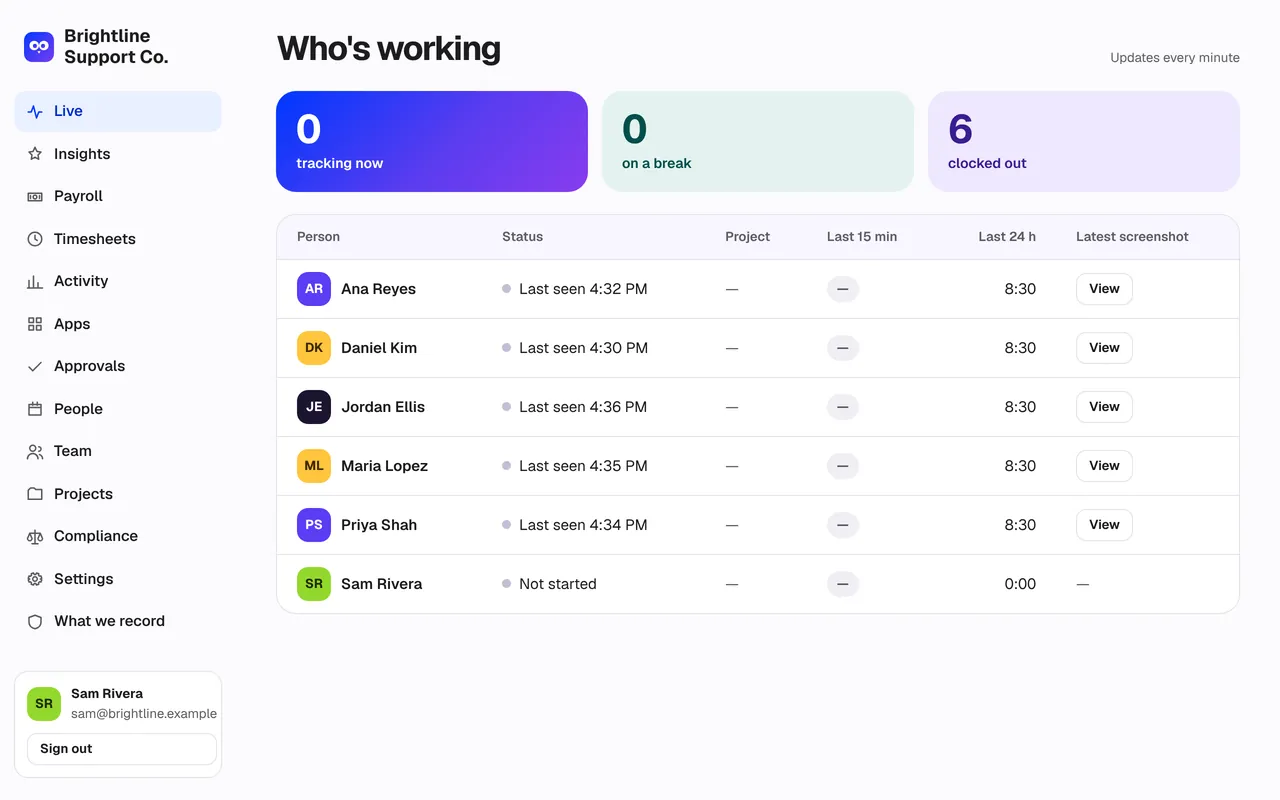
Live: who’s working right now
2

Insights: who needs a closer look

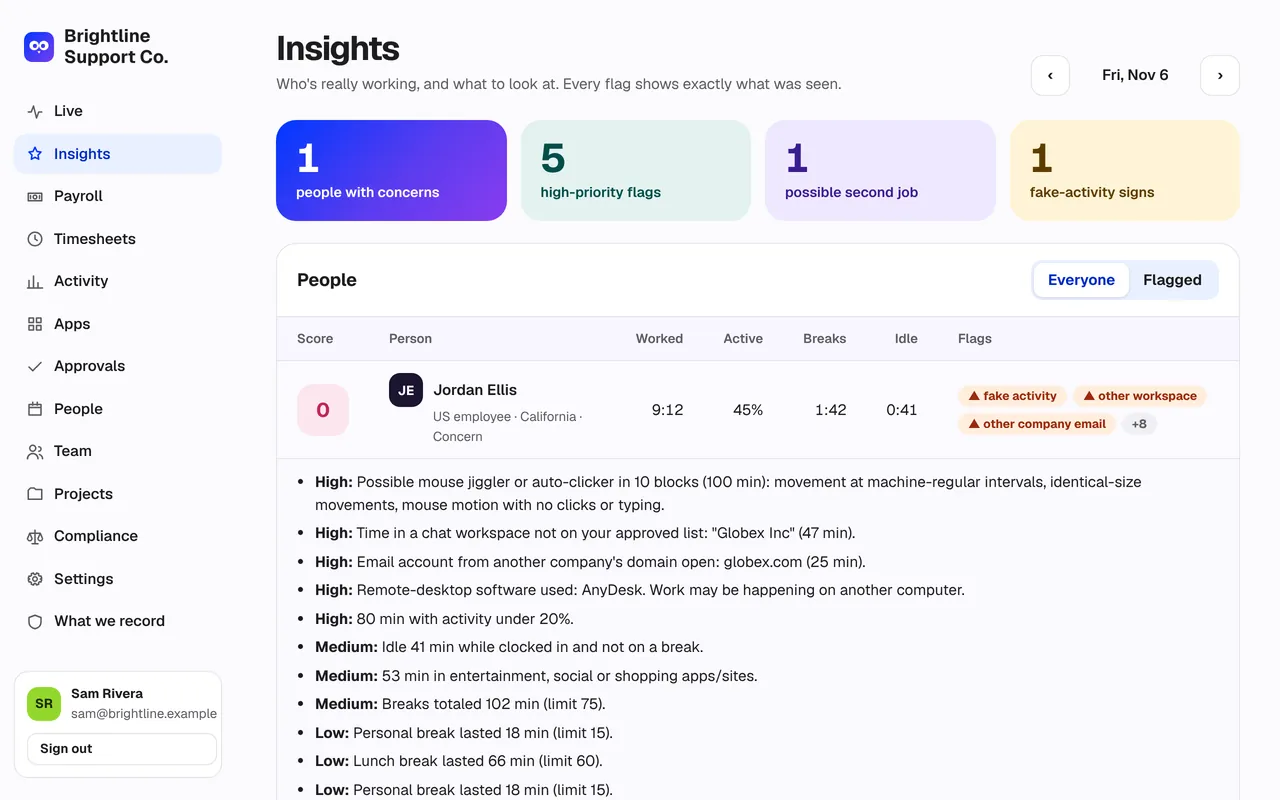
Each person’s day gets a score from 0 to 100 with every reason listed: possible mouse jiggler, another company’s Slack or email, remote-desktop software, idle time that wasn’t a break, breaks over the limit, unproductive apps. Click a person to see exactly what was seen.

app.watchie.co
Insights: who needs a closer look
3

Timesheets: hours by day and week

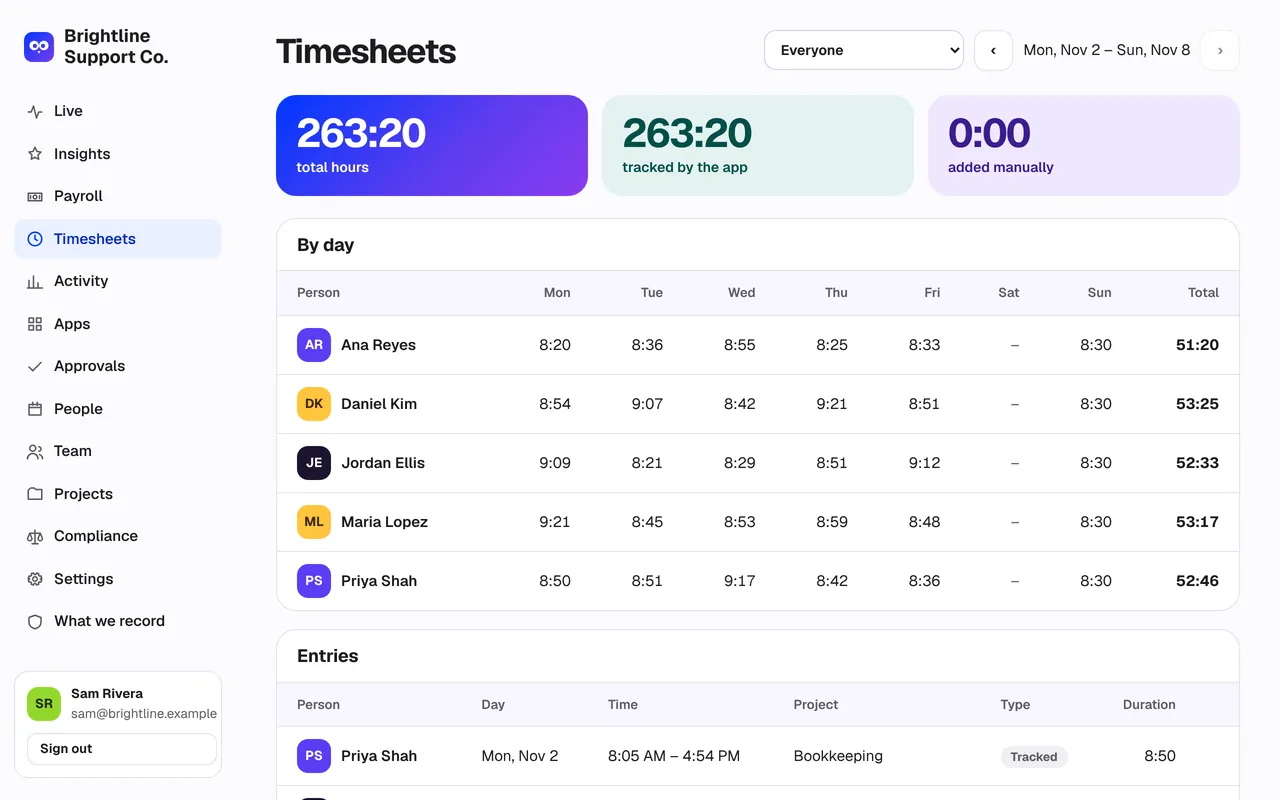
Hours per person per day, tracked and manual time shown separately. Manual time is always labeled — never mixed in silently.

app.watchie.co
Timesheets: hours by day and week
4

Activity: the day in 10-minute blocks

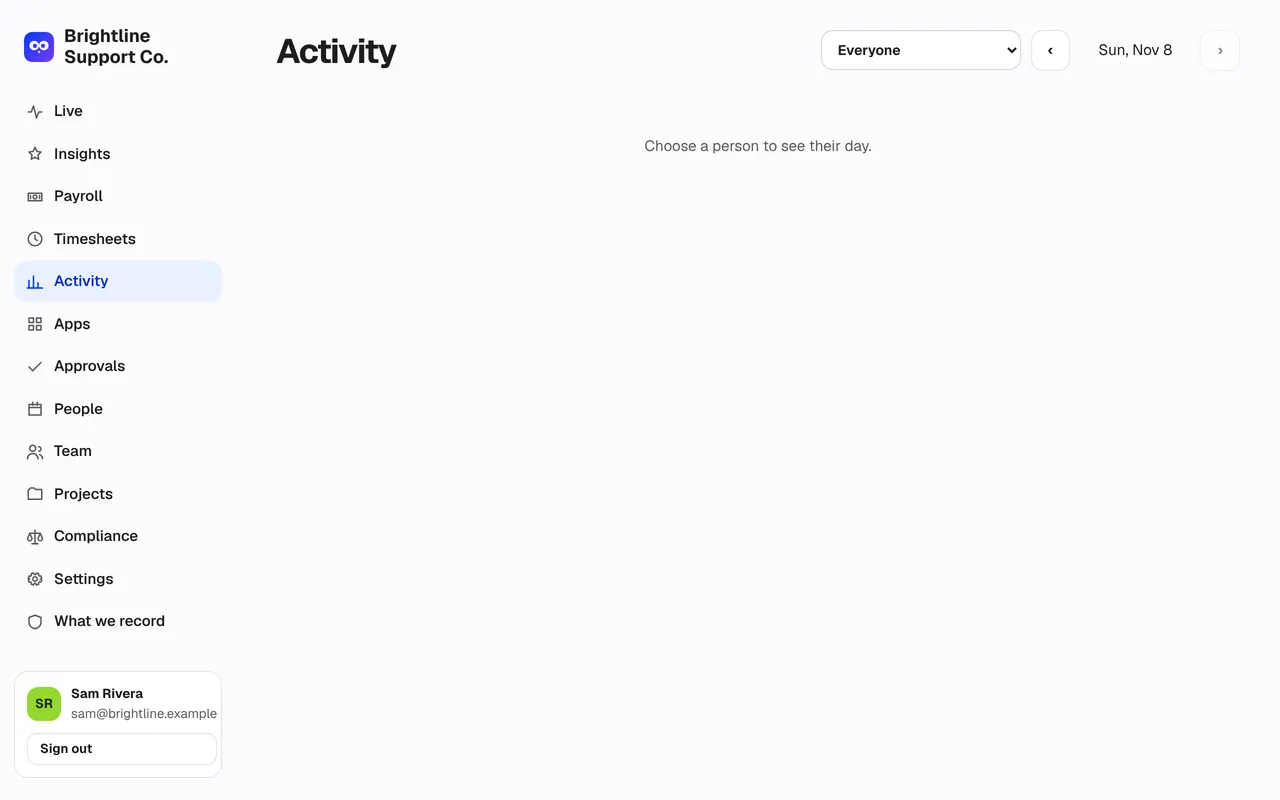
Each block shows activity %, the apps used and any screenshots. Colors are always paired with the number, so the page works for everyone.

app.watchie.co
Activity: the day in 10-minute blocks
5

Apps: where the time went

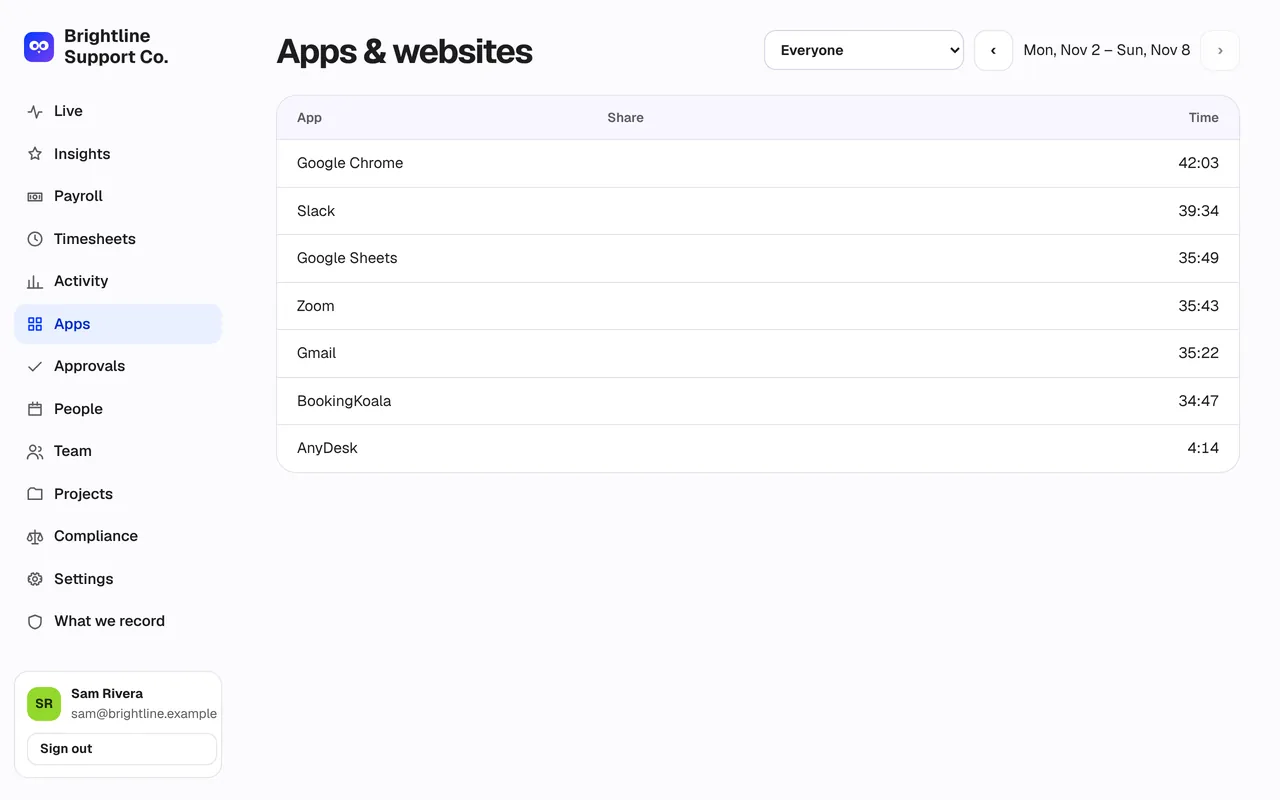
Time per app and website for the team or one person, with unproductive apps called out.

app.watchie.co
Apps: where the time went
6

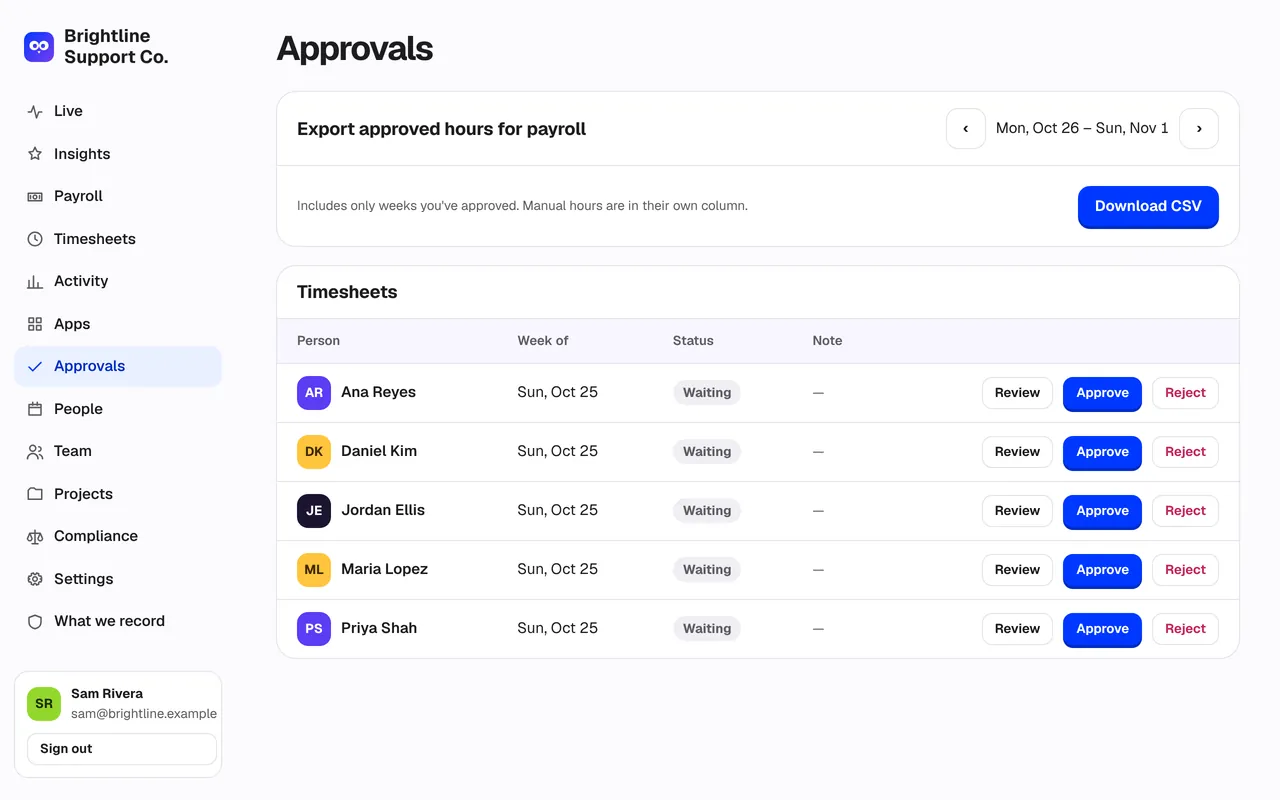
Approvals: submit, review, approve

People submit their week. Managers approve or send it back. Only approved time goes to payroll.

app.watchie.co
Approvals: submit, review, approve
7

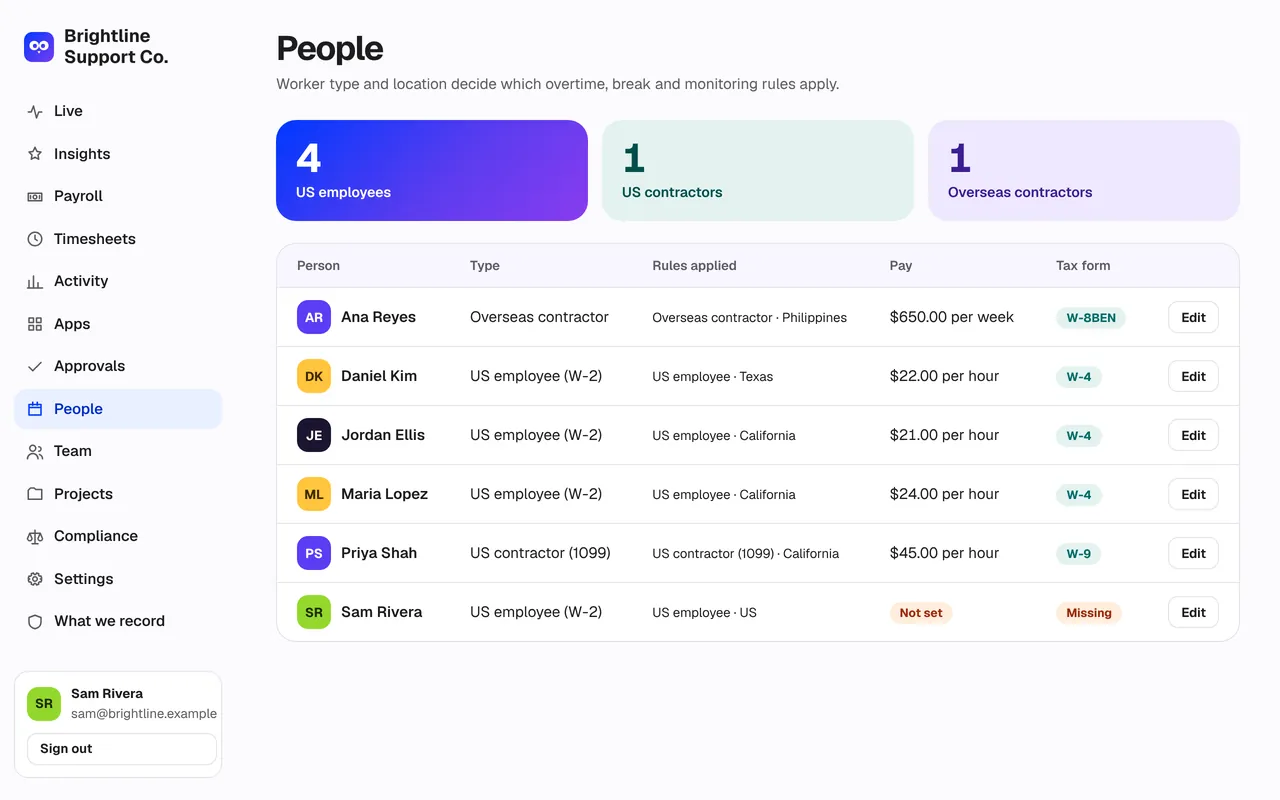
People: worker type, location, pay and schedule

Set each person as a US employee, US contractor or overseas contractor, with their state or country, pay rate and schedule. Watchie picks the right rules automatically.

app.watchie.co
People: worker type, location, pay and schedule
8

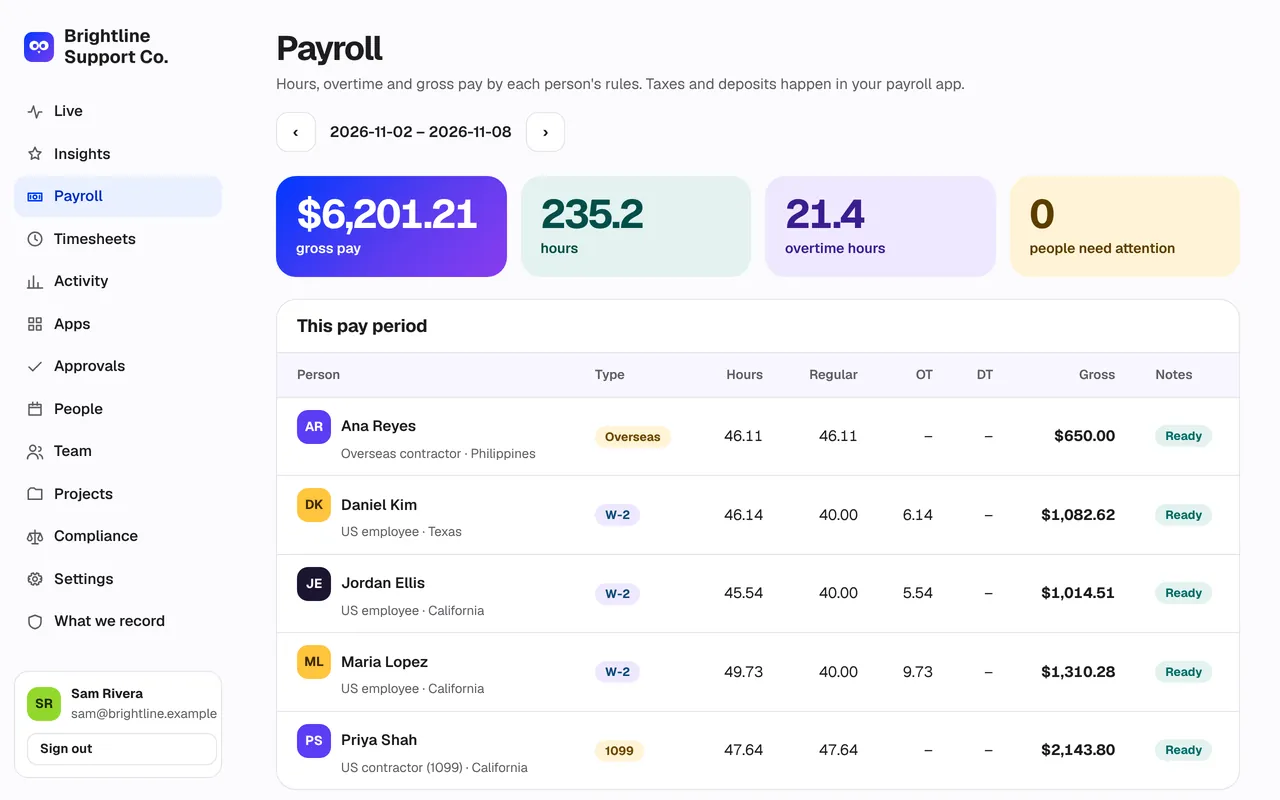
Payroll: approved hours to gross pay

Regular, overtime and double-time hours by state, unpaid lunches removed, meal-break premiums added, and gross pay — then export a file for Gusto, QuickBooks, ADP or Paychex.

app.watchie.co
Payroll: approved hours to gross pay
9

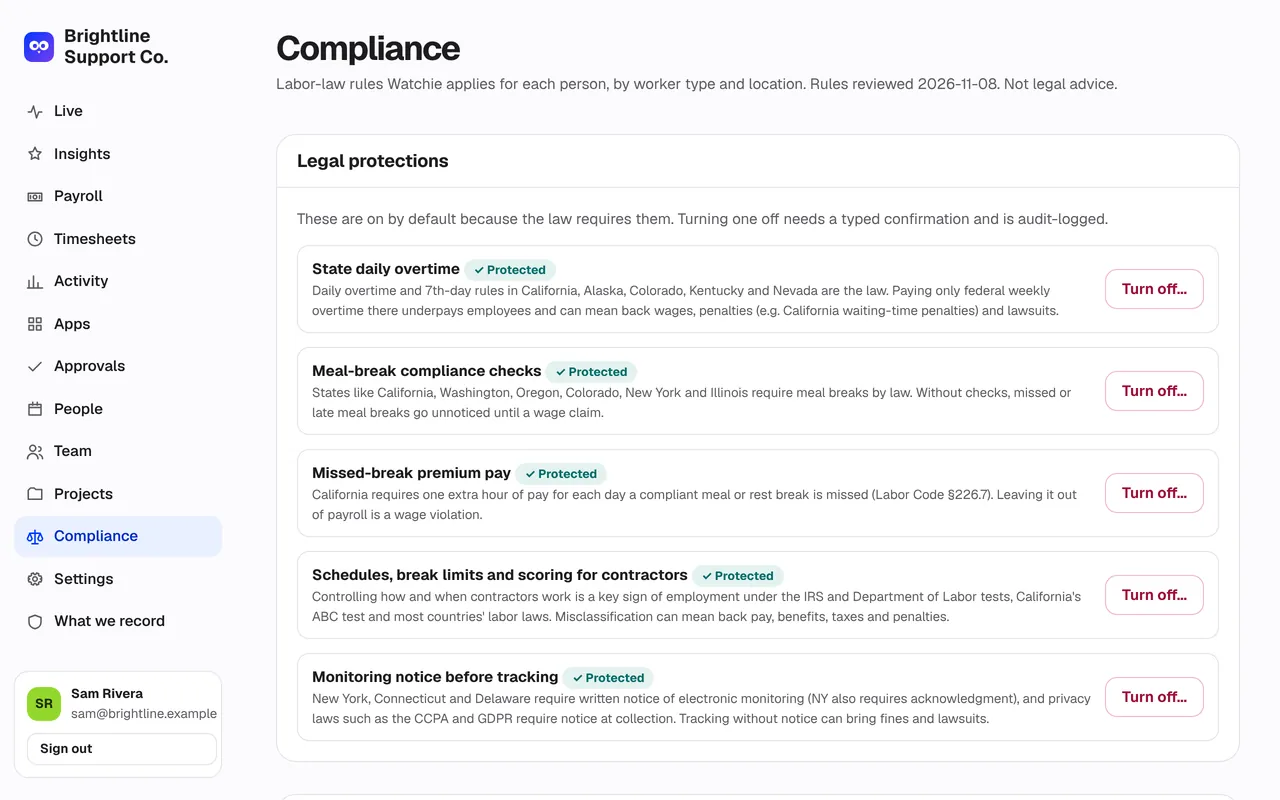
Compliance: the rules Watchie applies

Every legal protection, who has acknowledged the monitoring notice, missing tax forms, and a browser of rules for every state and country.

app.watchie.co
Compliance: the rules Watchie applies
10

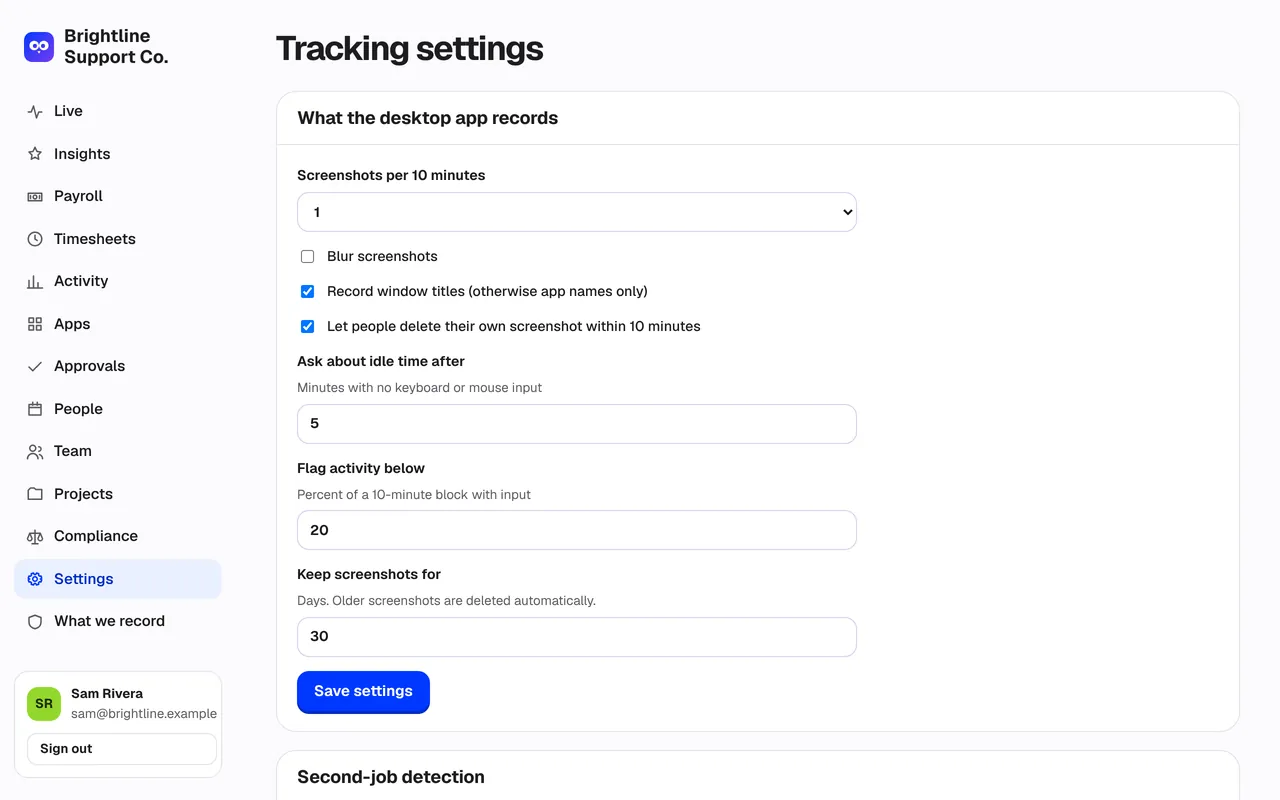
Settings: how tracking works for your company

Screenshot frequency and blur, idle time, window titles, retention, your email domains and approved chat tools for second-job detection, and your pay period. Every change is audit-logged.

app.watchie.co
Settings: how tracking works for your company
11

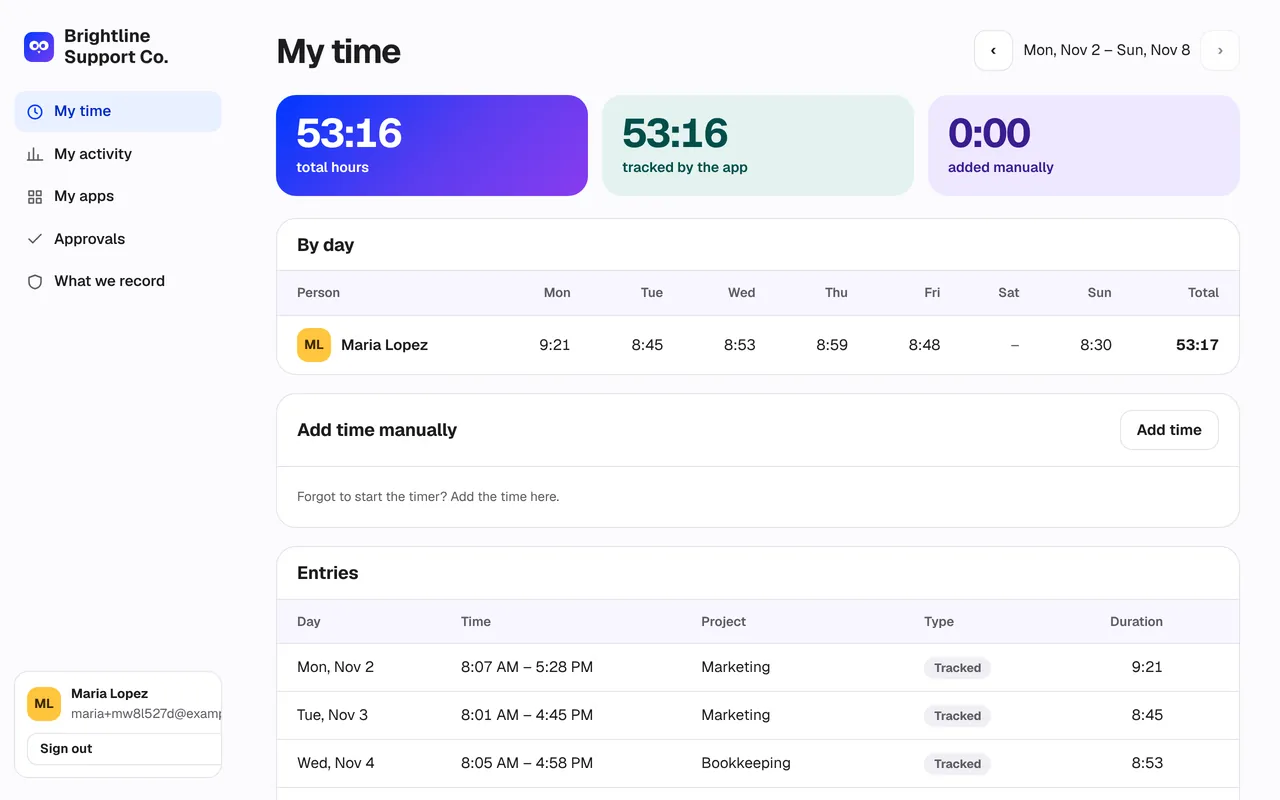
What employees see

People see their own time, activity, apps and screenshots — and nothing about anyone else. A “What we record” page explains exactly what is and isn’t tracked.

app.watchie.co
What employees see
12

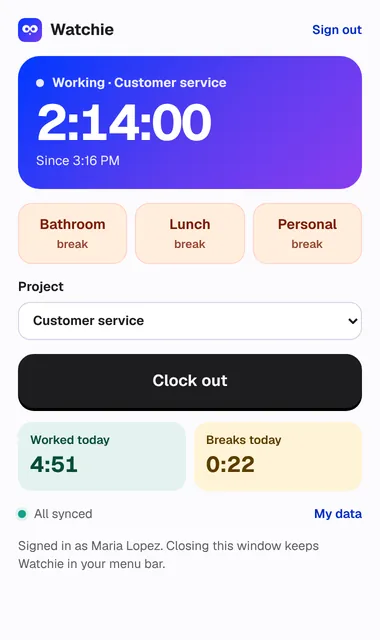
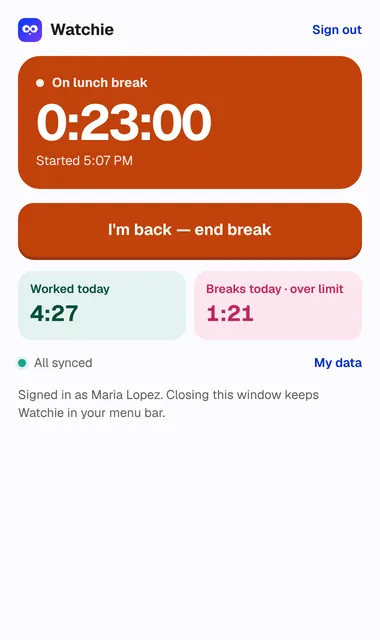
The desktop app your team uses

A small window and a menu-bar icon. Clock in, pick a project, take a break, clock out. It shows the time worked and break time today, and whether everything has synced.

Desktop app while clocked inDesktop app on a lunch break

Ready to see your own team?

Set up your team in minutes. Clock in on Mac, Windows, or a phone at the job site.

Already have an account? Log in